Password-protected notes, locked in your browser
Sometimes a note holds something you'd rather other people didn't see — a gift list, a draft message, the Wi-Fi details for the office. Quick Notepad Online lets you lock a single note with a password or PIN, without making an account.
Written and verified by NayeemPublished Last verified
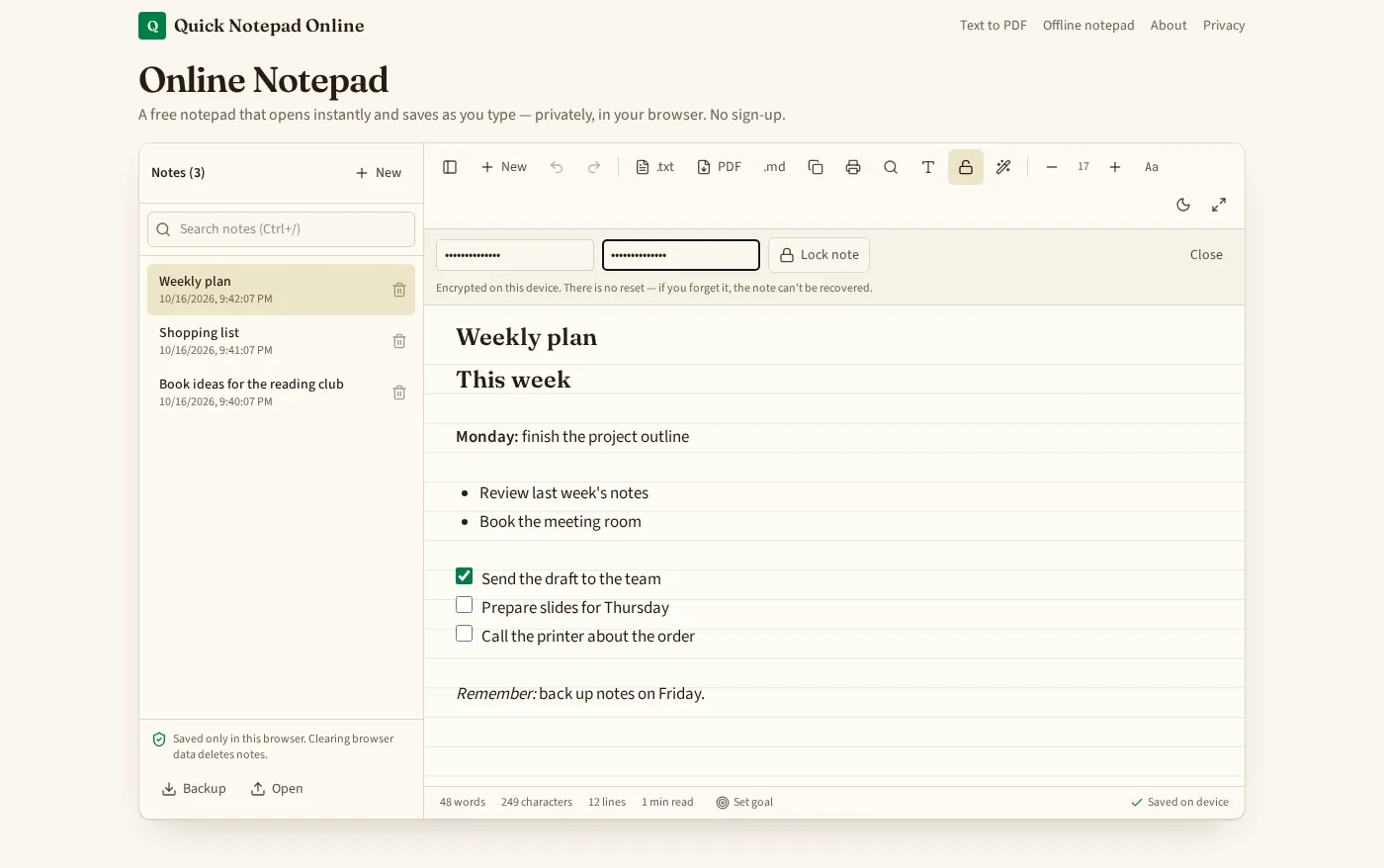
How to lock a note
- Open the notepad and pick the note you want to protect.
- Tap the padlock button in the toolbar.
- Type a password or PIN, type it again, and press Lock note.
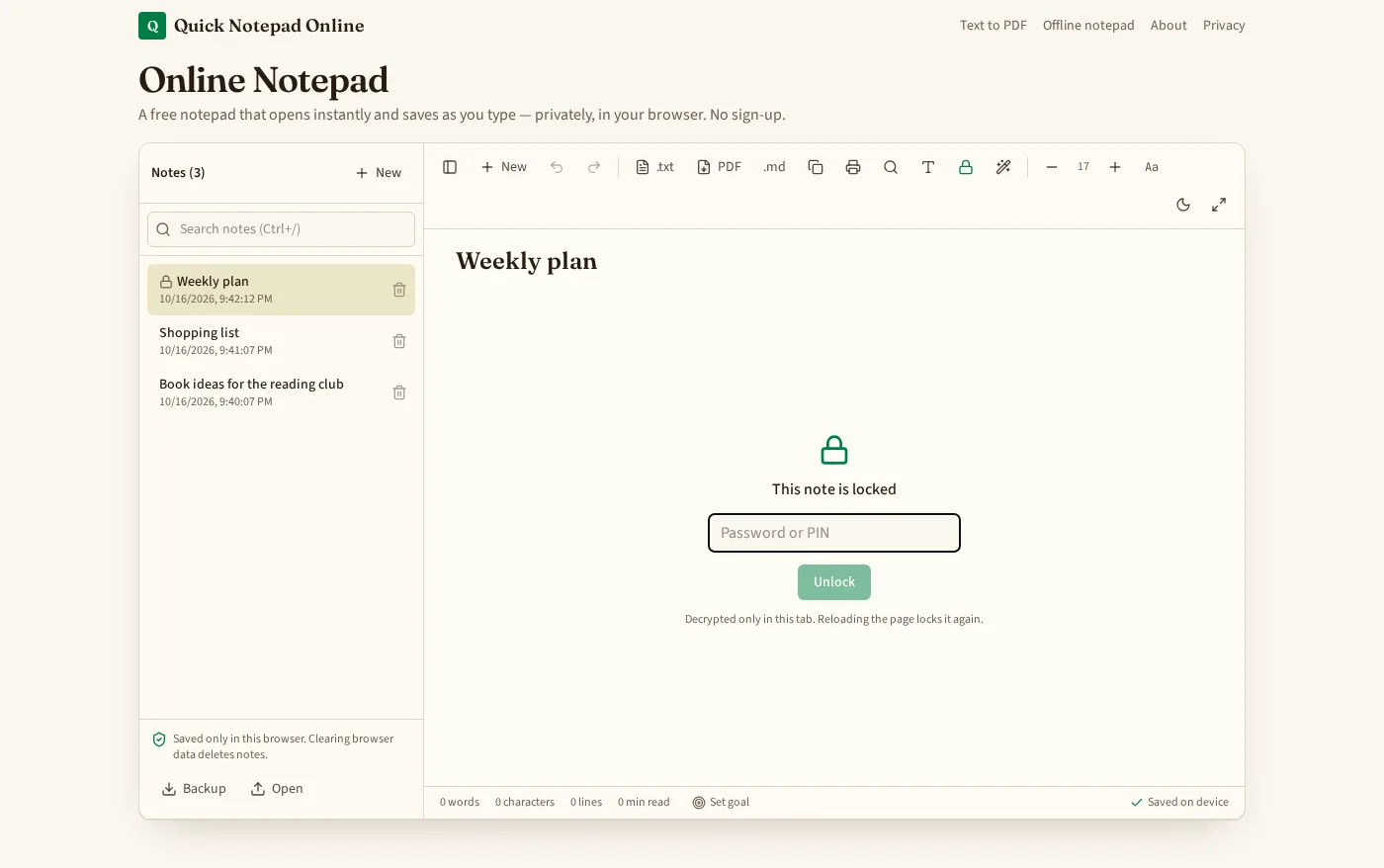
- The note gets a small padlock in your notes list. Next time the page loads, you'll be asked for the password before you can read it.
What actually happens to your text
When you lock a note, your browser turns the password into an encryption key and uses it to scramble the note before saving it. The readable text is removed from storage; only the scrambled copy is kept. When you unlock it, the same steps run in reverse in your browser. The password itself is never stored, so a wrong one simply fails to open the note.
| Encryption | AES-GCM with a 256-bit key (Web Crypto API built into your browser) |
|---|---|
| Turning the password into a key | PBKDF2 with SHA-256, 210,000 rounds, and a random salt for each note |
| Where it runs | Entirely in your browser — no server is involved |
| What is stored | Only the encrypted note, salt and a random starting value, in this browser's local storage |
| Password stored? | No — not on your device and not online |
| Unlock lasts | Until you press Lock now, reload, or close the tab |
Things to know before you rely on it
- There's no reset. If you forget the password, the note is gone for good. That's the cost of nobody else holding a copy of it.
- Exports are blocked while locked. Copy, TXT, Markdown and PDF only work after you unlock the note, so you can't accidentally save the readable text.
- Backups keep the lock. A Backup file stores locked notes still encrypted. Restoring it on another device asks for the same password.
- It protects the note, not the whole device. Anyone using your browser can still see the note's title in the list, delete it, or clear browser data. Leave the title blank if the title itself is private.
- Choose a real password for real secrets. A short PIN is fine for keeping a casual glance away; a longer password is much harder to guess.
Browser lock vs. account-based note apps
| Quick Notepad Online | Typical cloud notes app | |
|---|---|---|
| Account needed | No | Yes |
| Where the note lives | This browser only | Company servers |
| Forgotten password | Note can't be recovered | Often recoverable by email |
| Syncs between devices | No (use Backup and Open) | Usually yes |
If you need the same locked notes on every device automatically, a synced notes service suits you better. If you want a quick private note on the computer in front of you, with nothing uploaded, the browser lock is the simpler choice. Read more about how notes are kept on your device on the offline notepad page and in our privacy policy.
Open the notepad and lock a note