Online Notepad
A free notepad that opens instantly and saves as you type — privately, in your browser. No sign-up.
What is Quick Notepad Online?
Written and verified by NayeemPublished Last verified
Quick Notepad Online is a free, browser-based notepad for quick notes, to-do lists, drafts and copied text. It saves as you type, keeps as many notes as you like, and lets you search them when the list gets long. You can add bold text, headings and tick-box checklists, lock a private note with a password, set a word goal for a piece of writing, and download any note as TXT, PDF or Markdown. It also installs as an app that opens without internet. Your notes are not sent to a server, and you never need an account.
How to use the notepad
- Start typing in the page above — your note saves automatically.
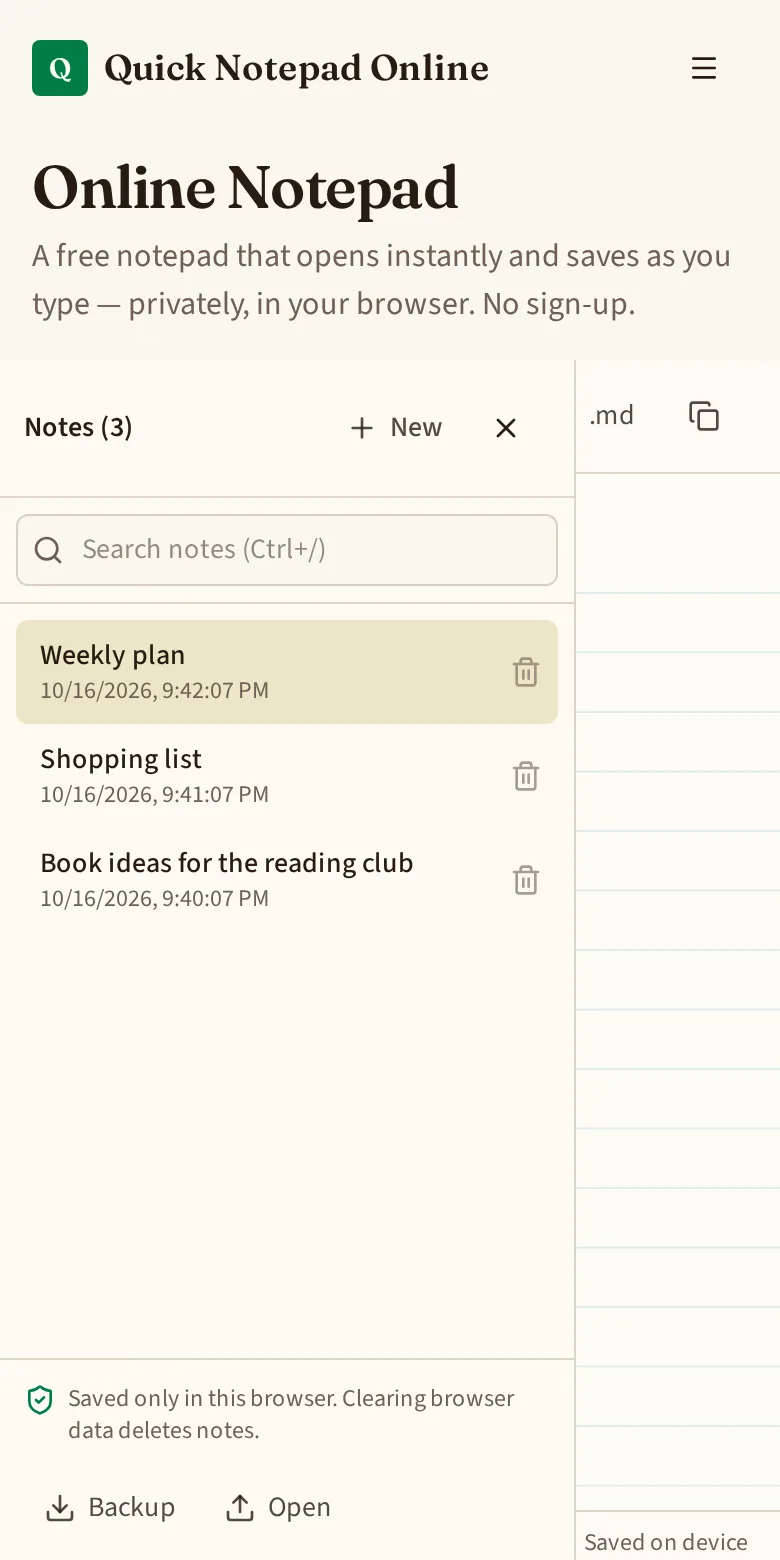
- Press New to start another note; open the notes list to switch between them.
- Download with .txt, PDF or .md, or print the note.
- Press Backup now and then to keep a copy of every note as a file.
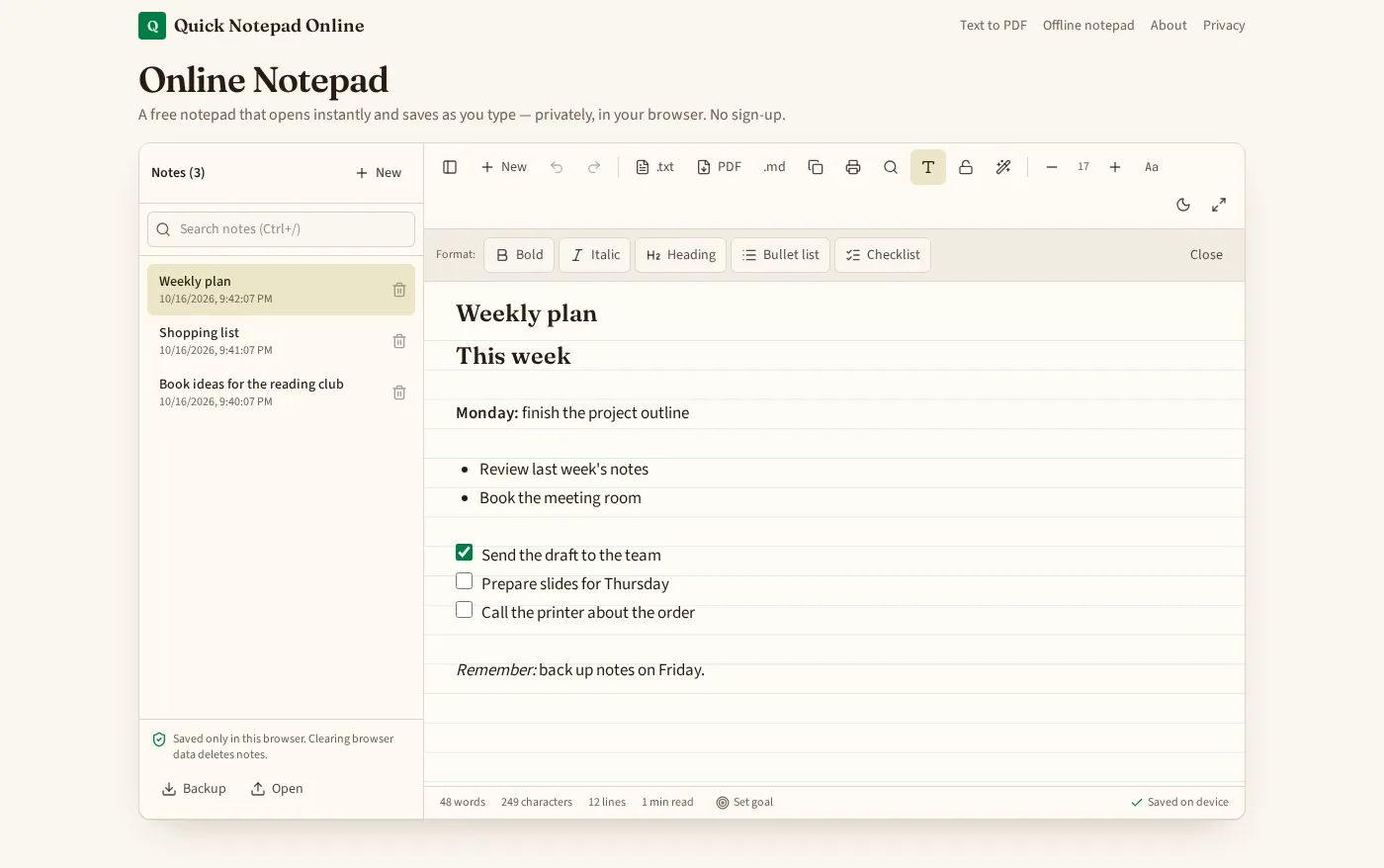
See it in action
What the tool does, in numbers
| Text size | 12 to 30 px, adjustable with − / + |
|---|---|
| Saving | Automatic on every change, to this browser only |
| Undo history | Per note, kept while the page is open; typing grouped into ~1 second steps |
| Formatting | Bold, italic, heading, bullet list and tick-box checklist, shown in place |
| Note search | Matches titles and note text; locked notes match by title only |
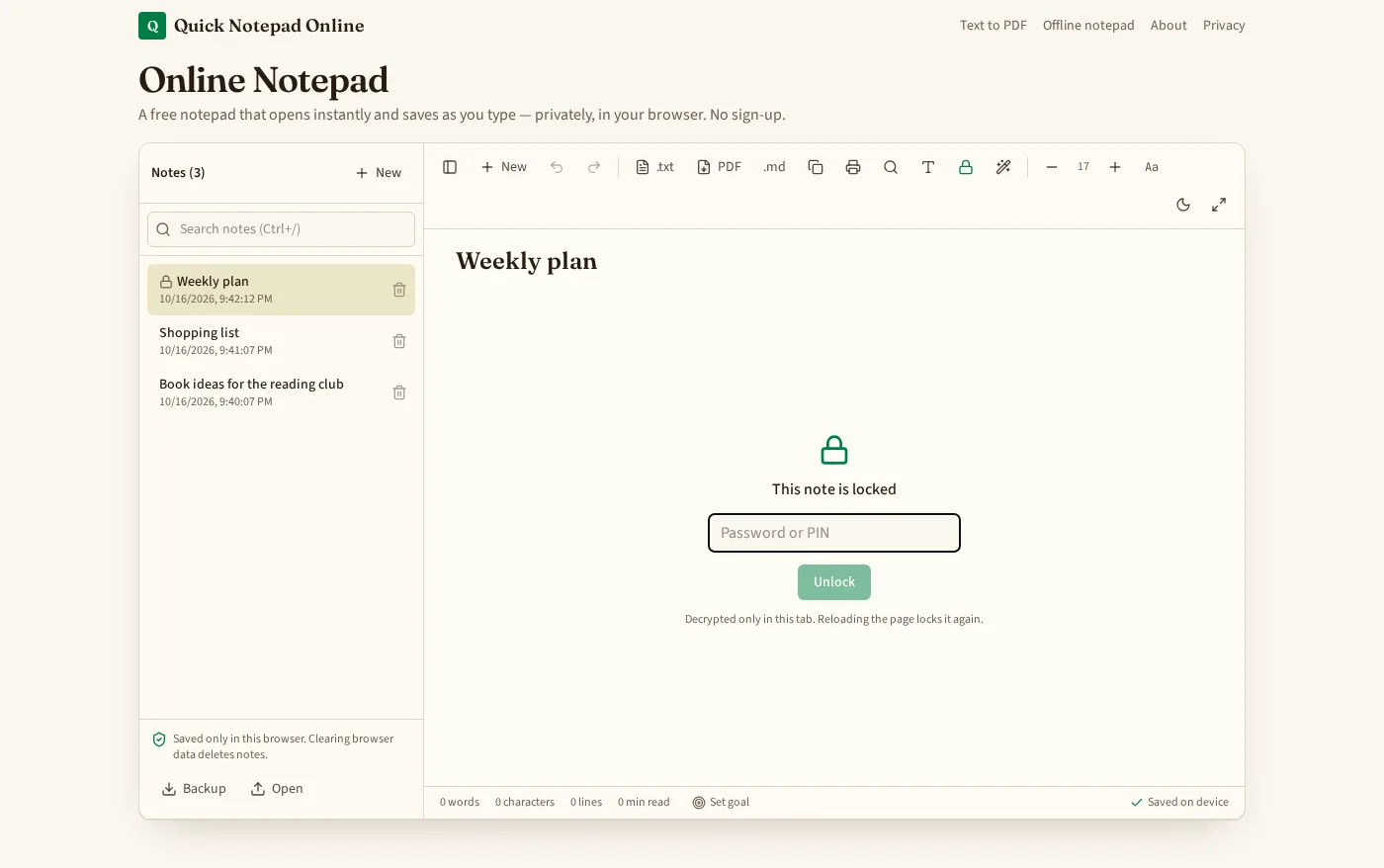
| Password lock | AES-GCM 256-bit, key from your password via PBKDF2 (210,000 rounds), done in the browser; no reset possible |
| Word goal | Presets of 250, 500 or 1,000 words, or your own number, with a progress bar |
| Text tools | 6 actions: UPPERCASE, lowercase, Title Case, Sentence case, trim trailing spaces, remove extra blank lines |
| Export formats | .txt, .md, PDF (A4), print |
| Backup | One file containing every note, restorable with Open; locked notes stay locked |
| Offline / install | Installable app; reopens without internet after the first visit |
| Shortcuts | Ctrl+B bold · Ctrl+I italic · Ctrl+/ search notes · Ctrl+Z undo · Ctrl+Y redo · Ctrl+S .txt · Ctrl+Shift+S backup · Ctrl+F find |
| Account needed | None |
Check our privacy claim yourself
You don't have to take our word for it. Any desktop browser can show you where your notes go:
- Open this page, then press F12 (or right-click → Inspect) and choose the Network tab.
- Clear the list, then type a few sentences in a note.
- Watch the list: typing and auto-saving create no requests that carry your note text. The only traffic you may see is the page itself and Google Analytics page-view measurement.
- Open the Application tab → Local Storage → this site. Your notes appear under the key
qno:notes:v1— that's the only place they are stored.
Features
Auto-save
Every change is stored on your device instantly.
Multiple notes
Create, rename, switch and delete notes.
Search your notes
Type a word to filter the notes list by title and content.
Bold, headings & checklists
Format as you write and tick off tasks right inside the note.
Password-locked notes
Encrypt a private note in your browser — handy on a shared computer.
Word goal
Set a target like 500 words and watch the progress bar fill.
Undo & redo
Step back or forward through your changes with the toolbar buttons, Ctrl+Z or Ctrl+Y.
Quick text tools
Change case (UPPER, lower, Title, Sentence), trim trailing spaces or remove extra blank lines in one click.
TXT, PDF & Markdown export
Download any note in one click.
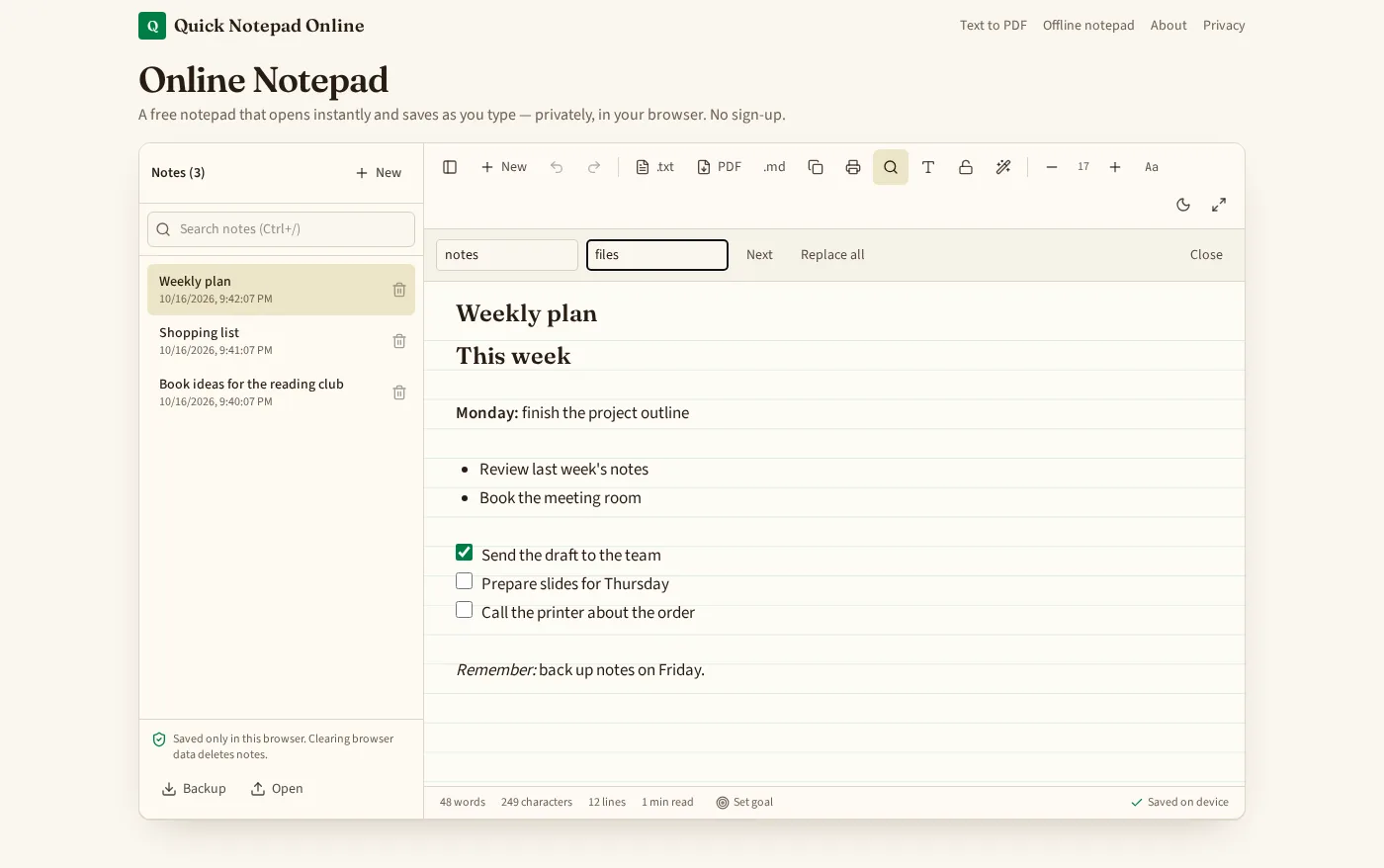
Find & replace
Search inside a note and replace all matches.
Word & character count
Live word, character, line and reading-time counts.
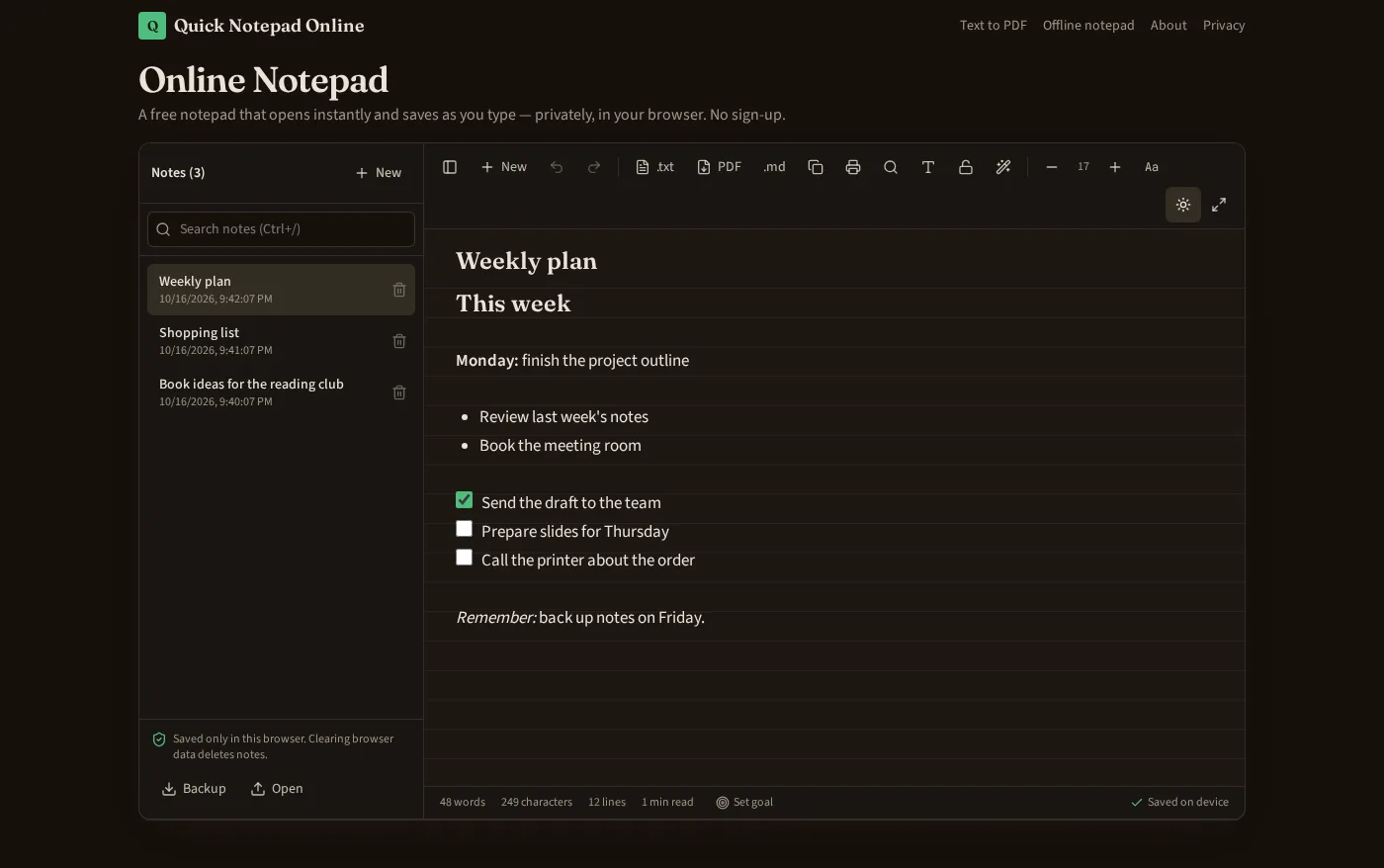
Dark mode & focus mode
Comfortable writing day or night, full screen.
Backup & restore
Save all notes to a file and restore them anywhere.
Install as an app
Add it to your home screen or desktop; after one visit it opens without internet.
Keyboard shortcuts
Ctrl+Z undo, Ctrl+Y redo, Ctrl+S save .txt, Ctrl+Shift+S backup, Ctrl+F find.
Need to turn text into a document? Try the text to PDF converter, or read how the offline notepad works.
Frequently asked questions
Is this online notepad free?
Yes. Quick Notepad Online is completely free, with no sign-up, no account and no word limit.
Where are my notes saved?
Notes are saved automatically in your own browser's local storage on this device. They are never uploaded to our servers, so only you can see them.
Can I lose my notes?
Notes stay until you clear your browser data, use private/incognito mode, or switch device. Use the Backup button regularly to download a copy of all notes as a file you can restore later.
Can I save a note as a PDF or text file?
Yes. Use the .txt button (or Ctrl+S) to download a plain text file, or the PDF button to download a PDF. You can also export Markdown and print.
Does the notepad work offline?
Yes. After your first visit the notepad is stored by your browser, so it opens and saves without an internet connection. You can also install it to your home screen or desktop.
Can I undo a mistake?
Yes. Use the Undo and Redo buttons in the toolbar, or press Ctrl+Z and Ctrl+Y. Each note keeps its own history while the page is open.
Can I make text bold or add a checklist?
Yes. Tap the T button to open the formatting bar, then choose bold, italic, heading, bullet list or checklist. The change shows straight away in your note — there's no separate preview. Checklist boxes can be ticked right inside the note, and the .md download keeps the formatting as Markdown.
Can I put a password on a note?
Yes. Open the lock button and choose a password for that note. The note is encrypted in your browser before it is saved, so the stored copy can't be read without the password. We never see or keep your password, which also means nobody can reset it for you — if you forget it, that note can't be opened.
How do I find an old note?
Open the notes list and type in the search box at the top, or press Ctrl+/. It looks through note titles and the text inside them. Locked notes are only matched by title, because their text stays encrypted.
Does it work on phones and tablets?
Yes. The notepad adapts to phones, tablets and desktops. On a phone, the formatting buttons keep your selected text highlighted, so you can select a word and make it bold without it jumping away.